

SHOVELS_CONTRACTOR down the next. Each row returns one contractor’s license, company size, contact details, and permit count. This turns a CRM export, an event attendee list, or a vendor roster into an enriched contractor list.
Enrich a List of Names
- Type
contractor_namein A1 and the names below it, one per row. - In B1, type
=SHOVELS_CONTRACTOR(A1, "TX"). - Fill B1 down to the last name.
contractor_name, the formula in row 1 returns a header row. Every other row returns one contractor.
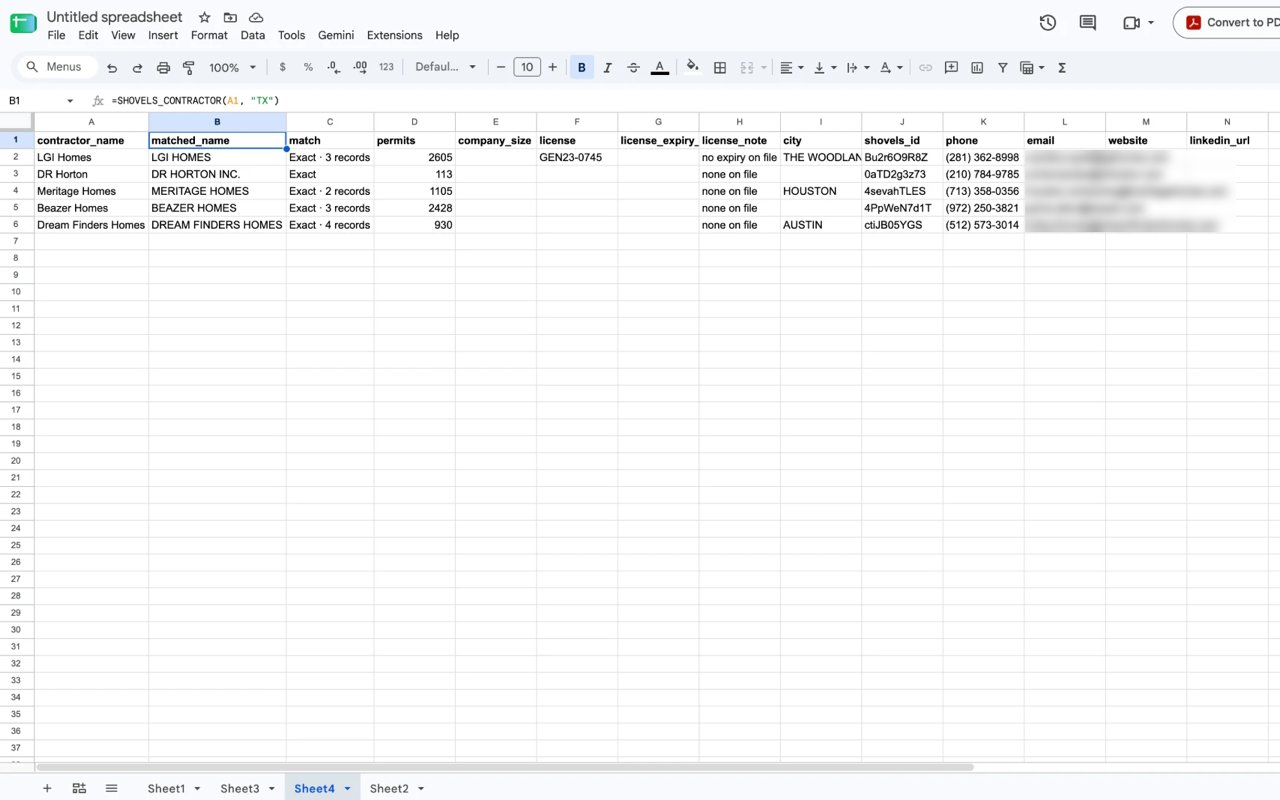
Columns Returned
Match Values
“Exact” ignores upper and lower case, punctuation, and company suffixes such as Inc, LLC, and Corp.
When a Name Returns No Match
Contractor names are matched as they appear on permits, including punctuation. The search keeps punctuation inside a name, so “D.R. Horton” returns No match while “DR Horton” finds DR HORTON INC. If a name returns no match, try another spelling. The formula looks at no more than 5 contractors per name. When more than 5 names contain the searched text, the exact match can be missing from those 5, and the row shows “Partial · check” with another contractor. A longer, more specific name usually fixes this.Get a Contractor’s Permits
Theshovels_id column is the contractor ID that SHOVELS_PERMITS_BY_CONTRACTOR takes. Put the ID in a cell, then point the formula at it:
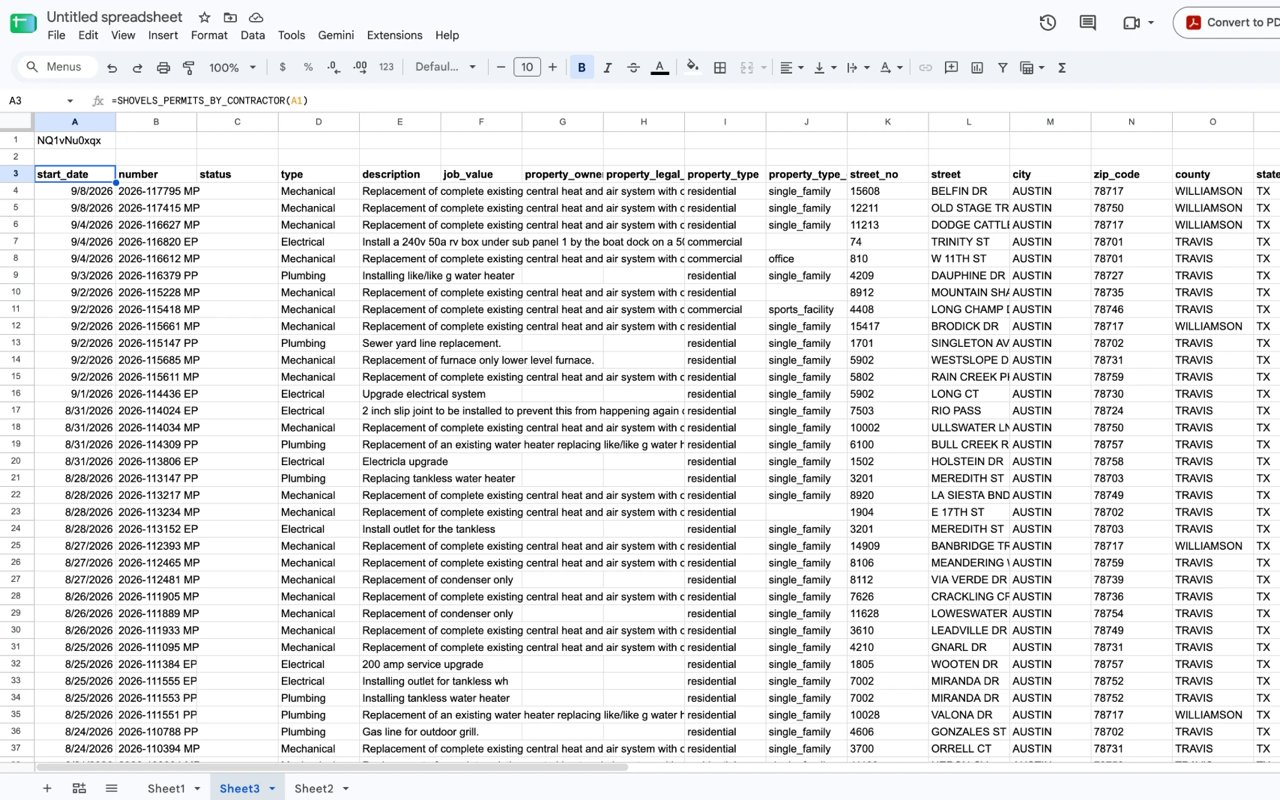
SHOVELS_CONTRACTOR_ID(name, state).
Credits
SHOVELS_CONTRACTOR and SHOVELS_CONTRACTOR_ID each spend up to 5 credits per name: 1 per candidate contractor the search returns. See How do credits, caching and refreshing work?